Big Walk Motion Sickness and Accessibility Settings
Where to find motion-reduction overlays, FOV, crosshair and challenge-skip settings, plus how to play without a microphone.

Reduce motion sickness first
Open Settings → General and test the Motion Reduction Overlays. They add a stable visual reference intended to make first-person movement feel more grounded.
On Windows or Mac, also open Settings → Graphics and increase the field of view. A wider FOV can reduce the closed-in feeling that contributes to discomfort. Change one option at a time and stop playing if symptoms continue.
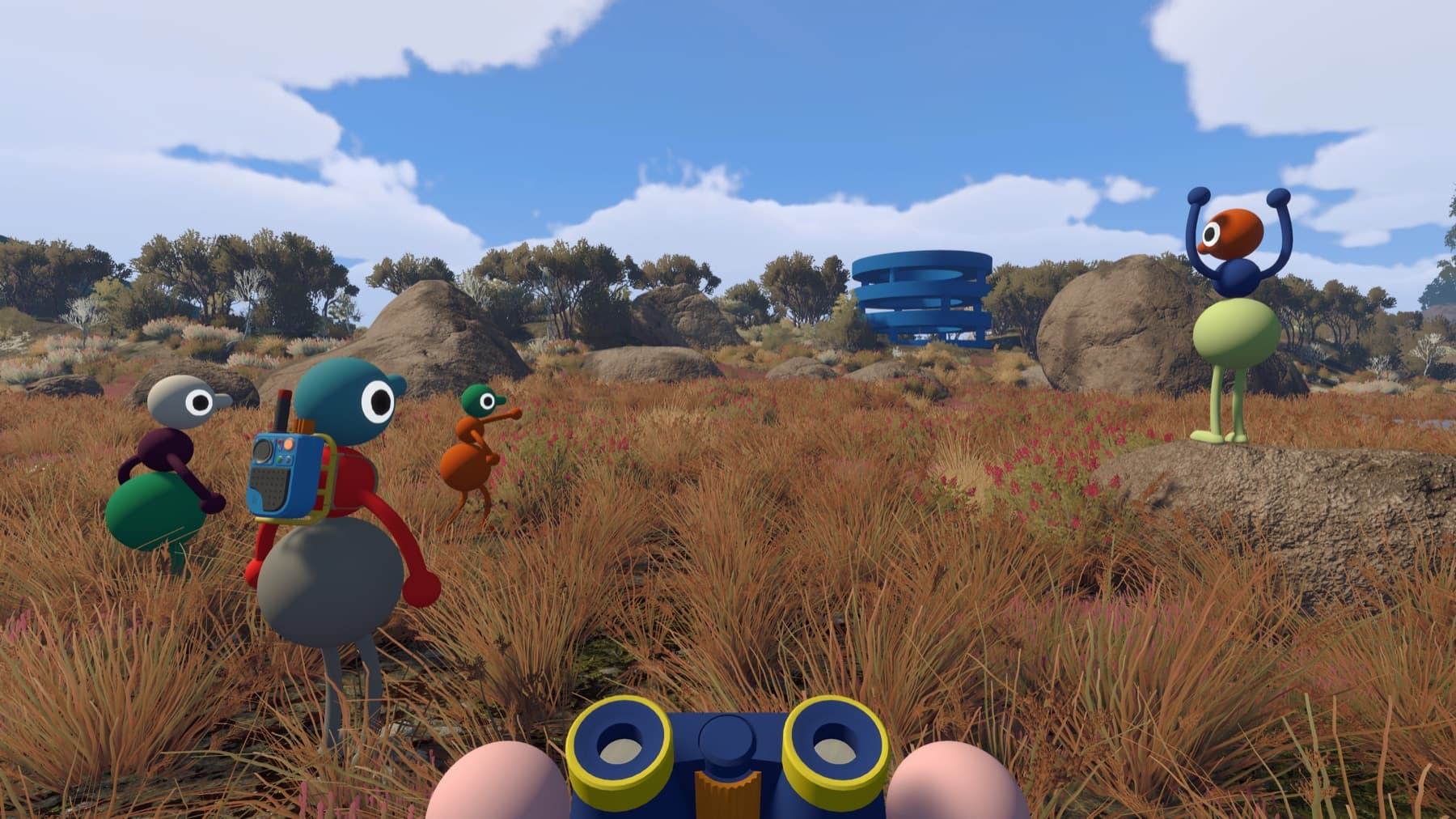
Accessibility features listed by House House
- Skip any challenge
- Rebind every control
- Choose among multiple crosshair styles
- Select hold or toggle behavior for some controls
- Adjust FOV on PC and Mac
- Use a Motion Reduction Overlay
- Carry another character when necessary
The host enables challenge skipping through the accessibility menu when beginning a session. This covers challenges involving hearing, reading, speech, typing, reaction speed or fine motor control.
Can you play without a microphone?
Yes. In-game text chat follows the same distance, barrier and walkie-talkie rules as voice chat, so it preserves the puzzle design. Avoid using unrestricted external text or voice channels if you want the intended solutions to make sense.
Set up the session before inviting everyone
Ask the host to enable challenge skipping when creating the session; do not wait until an inaccessible challenge has already stopped the group. Each player should then choose their own crosshair, hold/toggle behavior, rebinding and motion overlay.
For motion discomfort, test changes in a calm outdoor area before entering a moving train, chairlift or confined puzzle room. Increase FOV gradually on PC or Mac, keep a stable visual overlay enabled and take a break at the first sign of symptoms. No completion goal is worth pushing through nausea.
Sources checked
- Official Big Walk FAQ — complete accessibility and communication guidance