Big Walk PS5 Microphone Not Working
Unmute the DualSense or headset, allow game voice, select the correct input device and test close to another player after restarting the session.
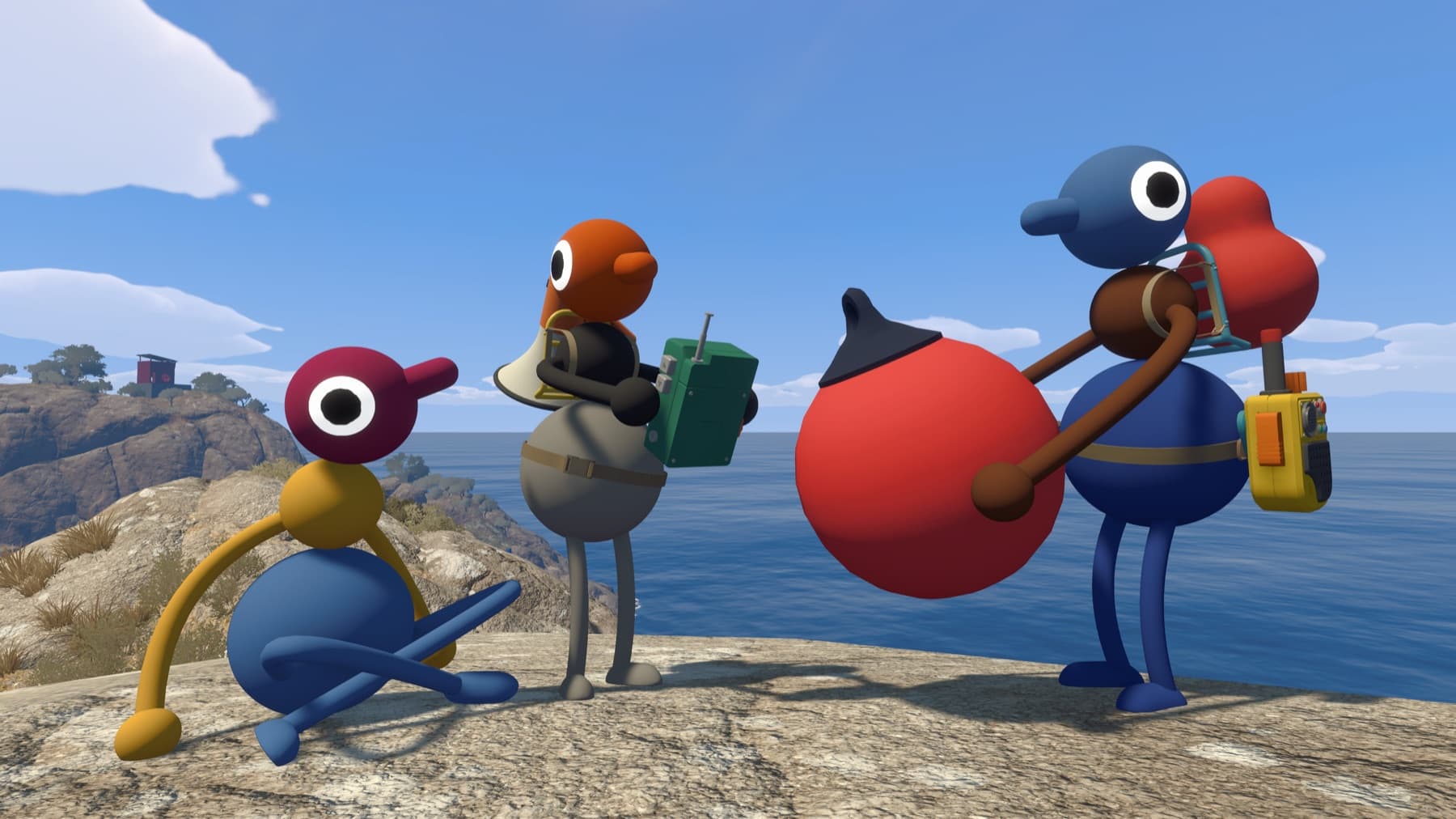
The useful answer
Unmute the DualSense or headset, allow game voice, select the correct input device and test close to another player after restarting the session.
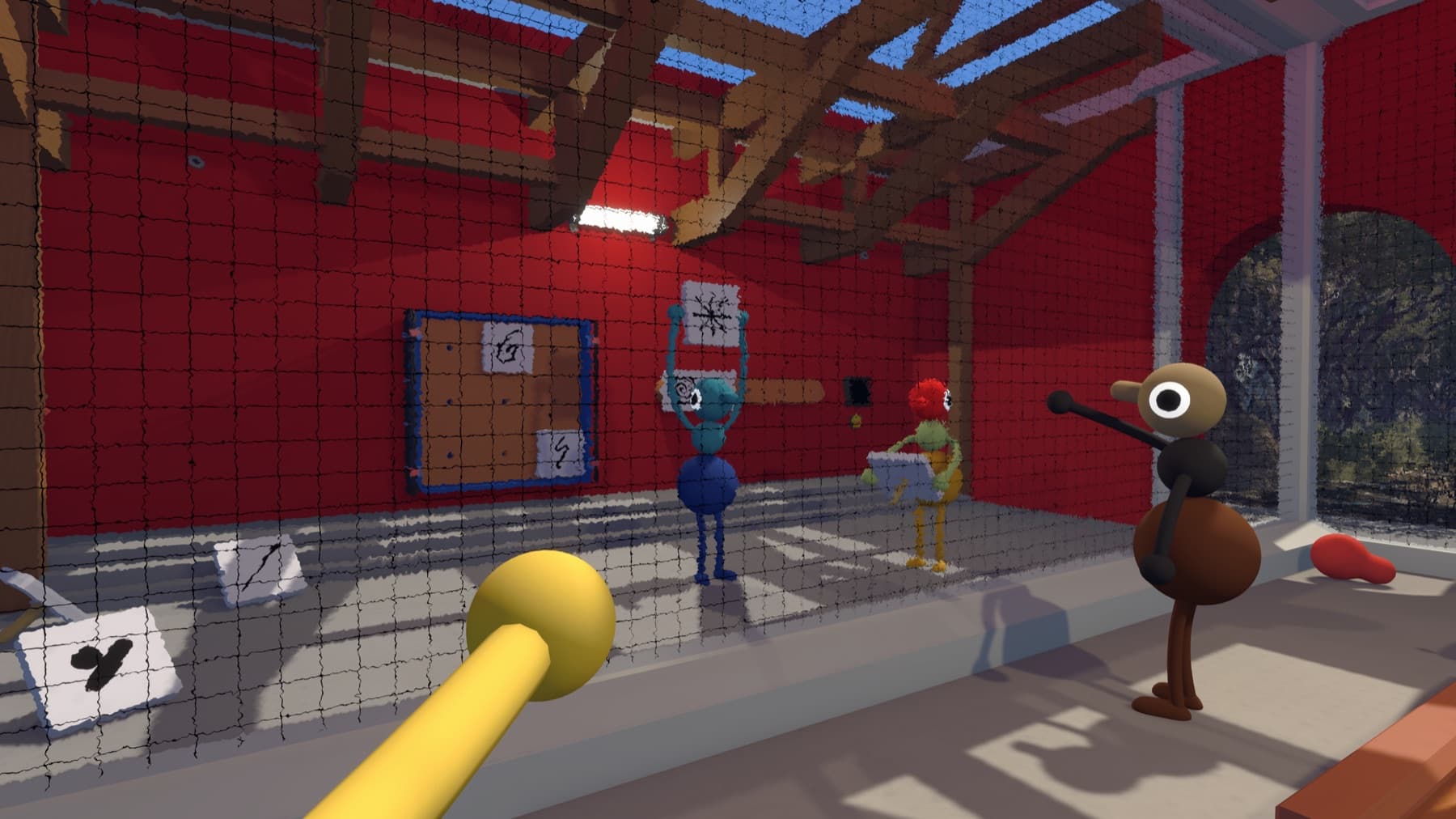
Step by step
- Check the controller mute light.
- Open PS5 microphone and game voice permissions.
- Select the intended headset or controller mic.
- Restart Big Walk and test nearby.
Why players get stuck here
Party-chat settings and hardware mute can block the game before Big Walk ever receives microphone input.
The PS5 setting most often missed
Press the PS button, open Sound and set Mute Game Voice Chat to Off. This is separate from the orange DualSense mute light and can silence the game's chat even while the microphone works elsewhere. Then open Big Walk's Audio settings and watch the activity meter at close range.
Leave console party chat during the test so you know the result is coming from in-game proximity voice.
Verify it before moving on
Change one variable at a time, then retest from a fresh session. That makes it clear which fix worked and avoids turning a connection, audio or input problem into several overlapping problems.
Related Big Walk help
Sources checked
- Official FAQ — primary fact and step cross-check